Signing Modules in UEFI Environments
- EN
- PT
Table of Contents
With the rise of AI applications that demand high-performance GPUs, it’s becoming increasingly common to require custom modules, including NVIDIA’s open-source drivers. These modules must be manually signed to function correctly on Linux distributions with Secure Boot enabled.
This guide walks you through creating and registering your own key (MOK) in UEFI firmware, allowing you to securely sign custom modules—without disabling Secure Boot.
#
1. Secure Boot and MOK Concepts
Secure Boot is a firmware feature that only loads binaries signed with trusted keys. On various Linux distributions, the “shim” binary is used, pre-signed by Microsoft, ensuring broad compatibility.
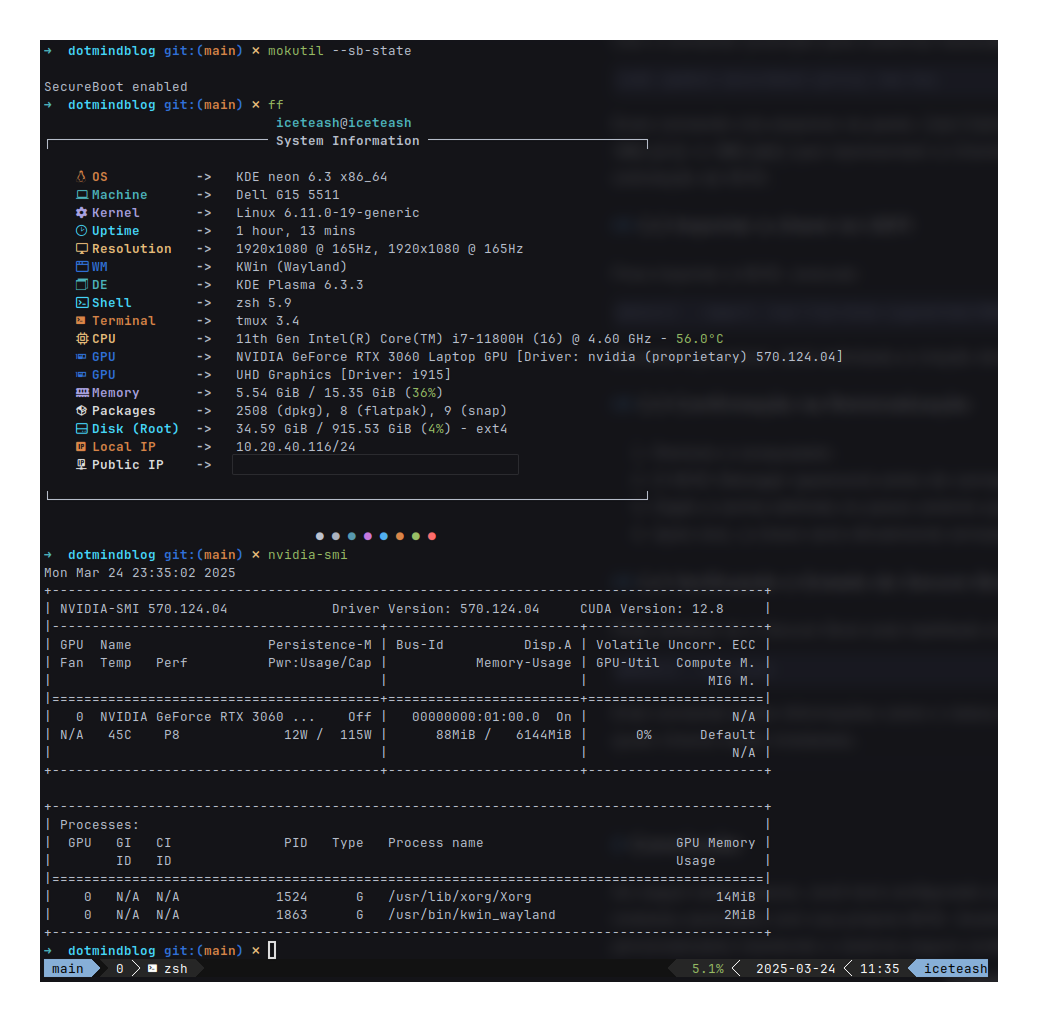
Check the status of Secure Boot:
mokutil --sb-state
- MOK (Machine Owner Key) is a key used to sign kernels/modules (e.g., NVIDIA drivers, DKMS) within the firmware while keeping Secure Boot enabled.
#
2. Generating and Registering the MOK
- On Debian/Ubuntu-based distributions, generate a new MOK key with:
sudo mkdir -p /var/lib/shim-signed/mok/

sudo openssl req -nodes -new -x509 -newkey rsa:2048 \
  -keyout /var/lib/shim-signed/mok/MOK.priv \
  -outform DER -out /var/lib/shim-signed/mok/MOK.der \
  -days 36500 -subj "/CN=My Secure Boot Key/"
This will create MOK.der and MOK.priv in /var/lib/shim-signed/mok/. Verify:
ls -l /var/lib/shim-signed/mok/
- Import the public key (MOK.der) into UEFI firmware using:
mokutil --import /var/lib/shim-signed/mok/MOK.der
Set a password, which will be requested during the next boot. Then reboot your system.
- During the next boot, the system will automatically enter the MOK Manager (Shim).
#
3. Step-by-Step in the MOK Manager
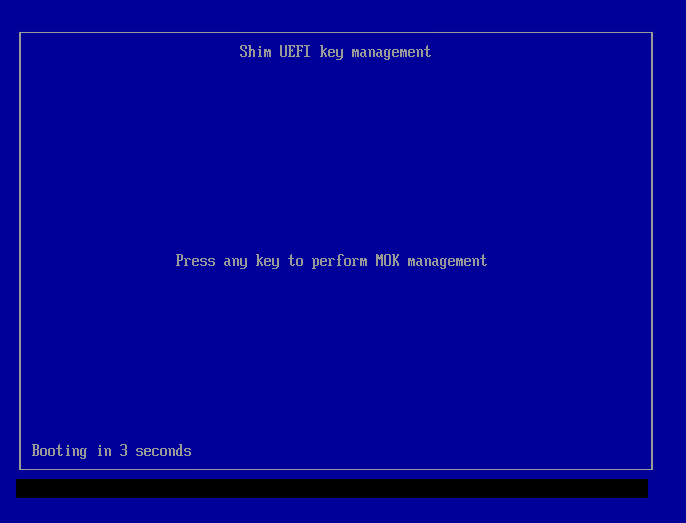
- Once the machine restarts, the UEFI key management utility “Shim” should appear. Press any key to begin.
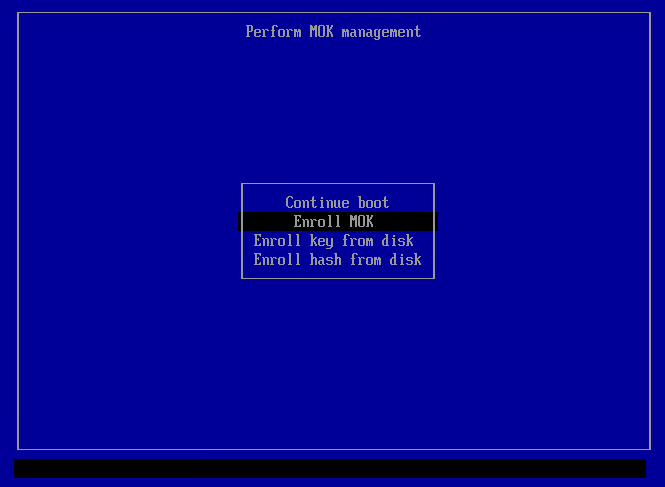
- Select Enroll MOK.
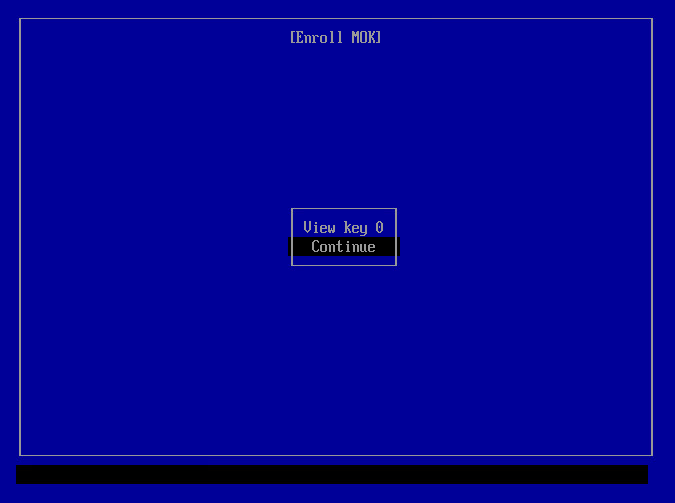
- Select Continue.
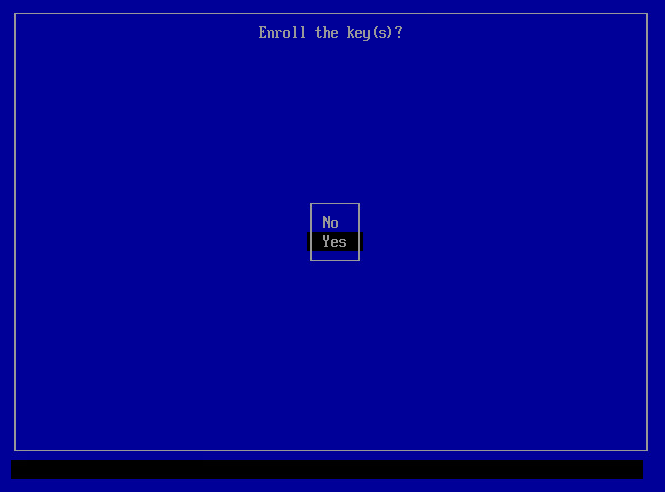
- Select Yes.
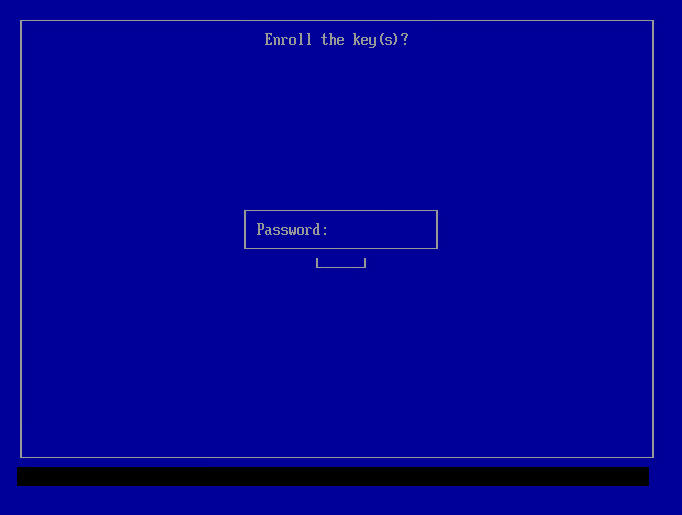
- Enter the password you chose when importing the key.
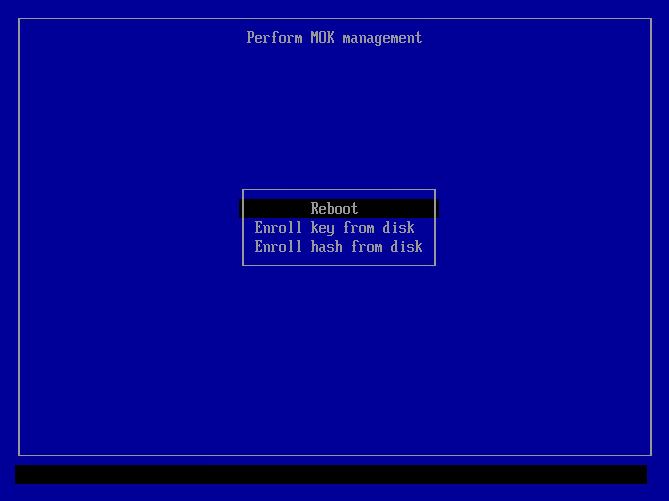
- The Perform MOK management screen will reappear. Select Reboot.
After returning to the operating system, your key will be included in the firmware.
#
4. Signing New Modules (e.g., NVIDIA/DKMS)
If you’re using DKMS, configure the file /etc/dkms/framework.conf to point to your MOK. This way, any recompiled modules are signed automatically.
mok_signing_key="/var/lib/shim-signed/mok/MOK.priv"
mok_certificate="/var/lib/shim-signed/mok/MOK.der"
In most common scenarios (DKMS modules), you won’t need to manually sign modules often. Make sure your DKMS framework is set up as shown above.
Manual signing (if needed):
Replace
nvidiawith<module_name>to locate the desired module:sudo modinfo -n nvidiaDecompress the module into a temporary file:
sudo zstd -d /lib/modules/$(uname -r)/updates/dkms/nvidia.ko.zst -o /tmp/nvidia.koSign the newly decompressed module:
sudo /usr/src/linux-headers-$(uname -r)/scripts/sign-file sha256 \
   /var/lib/shim-signed/mok/MOK.priv \
   /var/lib/shim-signed/mok/MOK.der \
   /tmp/nvidia.ko
Overwrite the signed module:
sudo zstd -f --rm /tmp/nvidia.ko -o /lib/modules/$(uname -r)/updates/dkms/nvidia.ko.zstRebuild the module cache:
sudo depmod -aIf necessary, update the initramfs to reflect changes for modules loaded at boot:
sudo update-initramfs -u -k $(uname -r)(Optional) Script to view all modules and confirm their signatures:
for mod in /lib/modules/$(uname -r)/updates/dkms/*.ko.zst; do
    out="/tmp/$(basename "$mod" .zst)"
    zstd -d "$mod" -o "$out"
    echo ">>> $(basename "$out")"
    modinfo "$out" | grep signer
done
#
5. Best Practices & Precautions
- Important: keep your private keys safe.
- If you lose this key or forget the password, you will need to generate and import a new MOK.
- Check logs (dmesg, journalctl) for errors such as “module signature verification failed”.
- On some motherboards or VM configurators (e.g., Hyper-V), you must configure Secure Boot to accept “Microsoft UEFI Certificate Authority” keys before generating or importing the MOK.